
- Your cart is empty
- Continue shopping

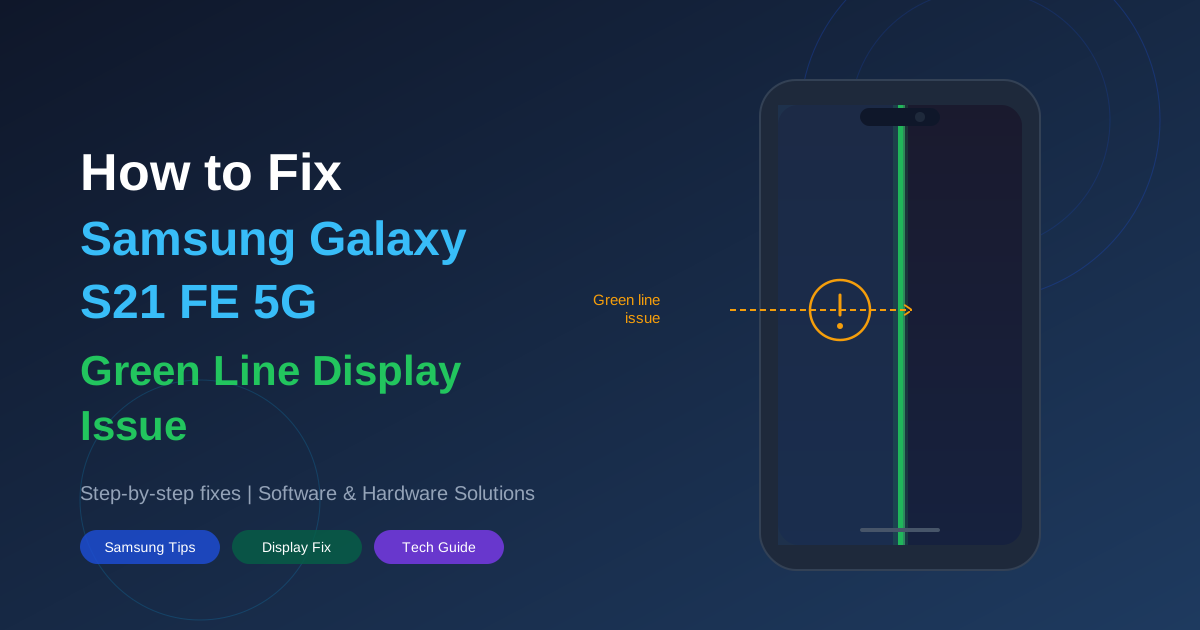
So you woke up one morning, picked up your Samsung Galaxy S21 FE 5G, and there it was – a thin green vertical line cutting right through your display like an uninvited guest who refuses to leave. Frustrating, right? You are definitely not alone. This is one of the most commonly reported issues with the S21 FE, and the good news is – there are quite a few things you can try before rushing to a repair shop.
In this guide, we are going to walk you through every possible fix, from simple software tweaks to hardware-level solutions. So grab a cup of tea, take a breath, and let us get that screen looking normal again.
What Causes the Green Line on Samsung Galaxy S21 FE 5G?
Before jumping into fixes, it helps to understand why this happens in the first place. The green line issue usually points to one of these two root causes:
- Hardware damage – A drop, pressure on the screen, or even manufacturing defect can damage the AMOLED display panel or the ribbon connector underneath.
- Software/firmware glitch – Sometimes a bad update, corrupted display driver, or system bug can trigger a green line even when there is no physical damage.
The fixes below cover both scenarios, starting with the easy software ones and moving toward hardware solutions.
Fix 1: Restart Your Phone
Okay, this one sounds almost too obvious, but hear me out. A lot of temporary display glitches; including the green line, can be caused by a minor software hiccup that a simple restart can clear up.
Press and hold the Power button + Volume Down simultaneously for about 8 seconds until the phone restarts. Check if the green line is still there after the reboot.
If it disappears after a restart, great! If it keeps coming back, move on to the next fix.
Fix 2: Check for Software Updates
Samsung regularly pushes out firmware updates that fix known display bugs. It is worth checking if there is a pending update on your device.
Go to Settings → Software Update → Download and Install. If an update is available, install it and restart your phone. Many users have reported that a firmware update completely resolved their green line problem.
Fix 3: Boot into Safe Mode
Sometimes a third-party app can interfere with your display and cause weird visual artifacts. Safe Mode lets you boot your phone with only the core system apps running; no third-party apps at all.
Here is how to boot into Safe Mode on your Galaxy S21 FE:
- Press and hold the Power button until the power menu appears.
- Tap and hold Power off.
- When the Safe Mode prompt appears, tap Safe Mode.
- Your phone will restart with “Safe Mode” displayed at the bottom left.
If the green line disappears in Safe Mode, a third-party app is the culprit. Uninstall recently installed apps one by one until you find the one causing the issue.
Fix 4: Clear Cache Partition
Your phone stores temporary system files (cache) to speed things up. But sometimes this cache gets corrupted and causes all sorts of weird issues, including display problems. Clearing the cache partition is safe and does not delete your personal data.
- Turn off your Samsung Galaxy S21 FE 5G completely.
- Press and hold Volume Up + Power button together.
- Release both buttons when the Samsung logo appears.
- Use the Volume buttons to navigate to Wipe Cache Partition.
- Press the Power button to confirm.
- After it finishes, select Reboot System Now.
This process usually takes a minute or two. Once your phone boots back up, check whether the green line is gone.
Fix 5: Adjust Display Settings
This might sound unusual, but changing your display resolution or screen mode has actually helped some users get rid of the green line – especially when it is software-related.
Go to Settings → Display → Screen Resolution and toggle between HD+, FHD+, or WQHD+. Also try changing the Screen Mode under Settings → Display → Screen Mode. Switch between Vivid and Natural modes to see if it makes a difference.
Fix 6: Factory Reset Your Samsung Galaxy S21 FE
If none of the above software fixes worked, it is time to go nuclear; a factory reset. This will wipe everything on your phone and restore it to its original out-of-the-box state. Make sure you back up your data before doing this!
Go to Settings → General Management → Reset → Factory Data Reset. Confirm and let the process complete. If the green line was caused by a software issue, this should fix it once and for all.
If the green line is still there after a factory reset, we are now looking at a hardware problem.
Fix 7: Hardware Solutions – What to Do Next
If your green line survived a factory reset, the display panel or the internal ribbon cable connecting the screen is likely physically damaged. Here is what you can do:
Option A: Claim Your Warranty
If your Samsung Galaxy S21 FE 5G is still under the manufacturer warranty (1 year from purchase), Samsung may replace or repair the display for free even if you did not physically drop it. Many users with the green line issue have reported that Samsung acknowledged it as a manufacturing defect and covered the repair under warranty. Visit a Samsung Service Centre with your purchase receipt.
Option B: Visit a Samsung Authorized Service Center
If your warranty has expired, head to a Samsung-authorized service center for a professional display replacement. Avoid random local repair shops for AMOLED screen replacements using non-genuine parts can cause touch sensitivity issues, color inaccuracy, and more problems down the road.
Option C: DIY Display Replacement (Advanced Users Only)
If you are comfortable with phone repairs and have the right tools, you can purchase a genuine Samsung S21 FE replacement display and do it yourself. However, be warned the S21 FE uses an AMOLED panel with a tight frame assembly, and improper handling can cause further damage. Only go this route if you really know what you are doing.
Quick Summary: All Fixes at a Glance
| Fix | Type | Difficulty | Data Loss? |
|---|---|---|---|
| Restart Phone | Software | Easy | No |
| Software Update | Software | Easy | No |
| Boot into Safe Mode | Software | Easy | No |
| Clear Cache Partition | Software | Medium | No |
| Adjust Display Settings | Software | Easy | No |
| Factory Reset | Software | Medium | Yes (backup first) |
| Warranty Claim | Hardware | Easy | No |
| Authorized Service Center | Hardware | Easy | No |
| DIY Screen Replacement | Hardware | Advanced | No |
How to Prevent Green Line Issues in the Future
- Always use a good quality screen protector and case to prevent physical damage.
- Avoid placing heavy objects on top of your phone.
- Keep your phone away from extreme heat which can cause AMOLED panels to degrade faster.
- Install system updates regularly to keep your firmware free of known bugs.
- Avoid charging your phone overnight continuously, as heat from prolonged charging can stress the display over time.
Final Thoughts
The green line issue on the Samsung Galaxy S21 FE 5G is annoying, no doubt about it. But the good news is that it is fixable; either through software troubleshooting or a display replacement. Start with the easy fixes first, work your way down the list, and you will likely find a solution that works for you.
If your device is still under warranty, definitely reach out to Samsung first, there is a good chance they will sort it out for free. And if you found this guide helpful, feel free to share it with someone else who might be going through the same frustrating experience!
Got questions or a fix that worked for you? Drop it in the comments below.. we would love to hear from you!